
How to Gate GTM Tags Using Google Consent Mode Tag Settings (Instead of Custom Triggers)
This article explains how to control tag firing in Google Tag Manager (GTM) using Google Consent Mode (GCM) tag-level Consent Settings, rather than modified or custom triggers.
In this model, consent enforcement is delegated to GTM's built-in consent checks. Captain Compliance derives the user's consent state from data layer variables, translates it into Google Consent Mode signals, and GTM then decides — on a per-tag basis — whether each tag is permitted to execute.
This approach is simpler to maintain than trigger-based gating and integrates tightly with GCM-dependent technologies, but it is less flexible in certain scenarios. Both approaches, and the tradeoffs between them, are described below.
Note: For Google's own documentation on consent settings in GTM, see Tag Manager consent mode support.
Two Ways to Consent-Gate Tags in GTM
There are two primary patterns for enforcing consent on downstream tags in GTM. They can be used independently or combined, but most implementations standardize on one.
Option 1: Tag-Level Consent Settings (GCM-Based Gating) — covered in this article
Each tag declares its consent behavior under Advanced Settings → Consent Settings → Additional Consent Checks. Tags keep their normal triggers (for example, All Pages), and GTM automatically suppresses any tag whose required consent categories have not been granted.
In this model:
Triggers describe when a tag would fire
Consent Settings describe whether the tag is allowed to fire
Captain Compliance supplies the consent state that GTM evaluates
Option 2: Custom Triggers and Exception Triggers (Trigger-Based Gating)
Tags are fired (or blocked) using custom triggers built on Captain Compliance consent events and data layer variables — for example, firing a tag only when the captainComplianceConsent event indicates that a given category has been granted.
This model offers finer-grained control over exact firing timing and conditions, at the cost of a more complex GTM configuration.
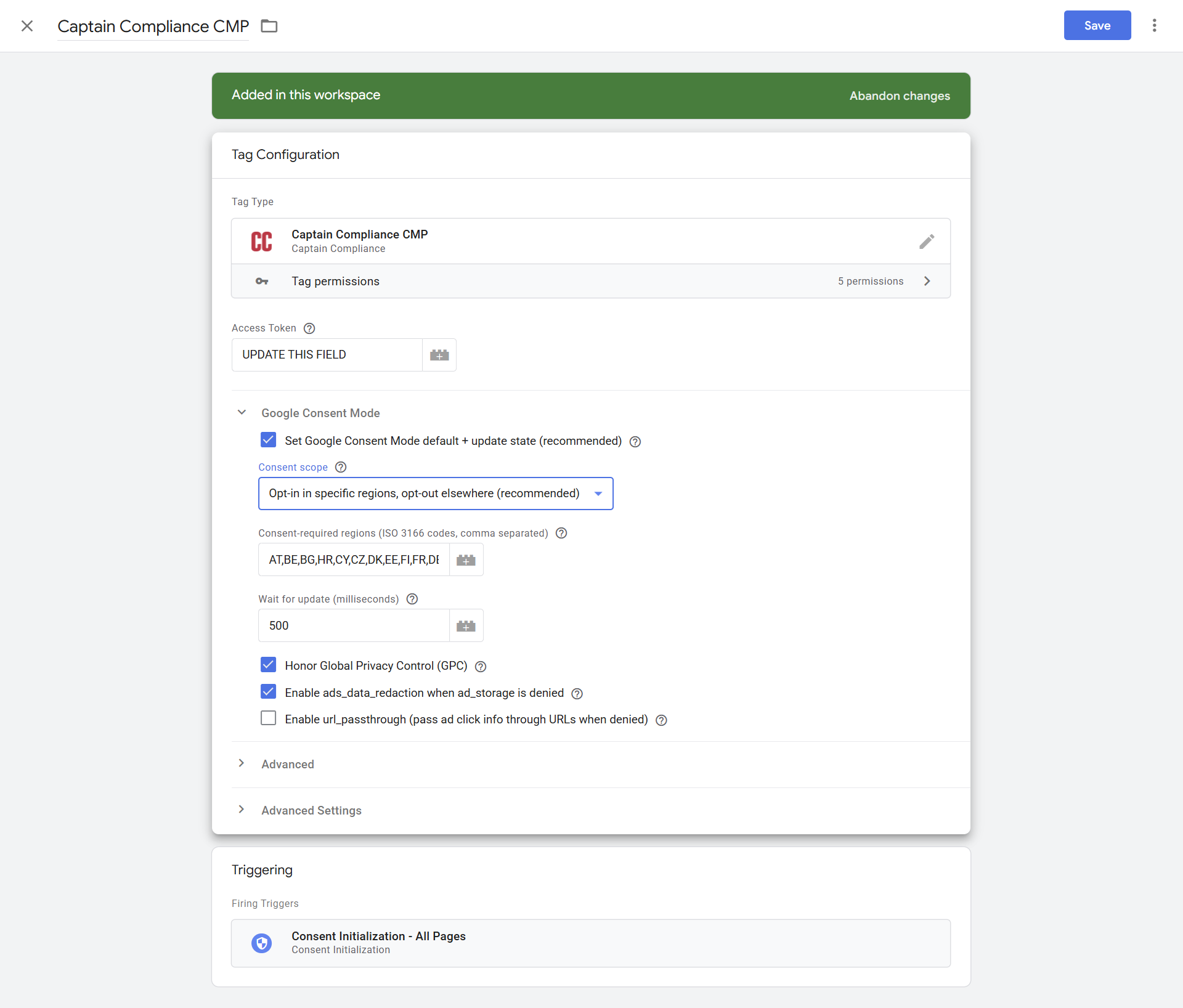
Requirement: Use the Latest Captain Compliance Tag Template
Important: This integration requires the latest Captain Compliance tag template. Earlier versions of the template do not fully support the consent signaling behavior described in this article. If your GTM container was configured using an older version, update to the latest template before enabling tag-level Consent Settings.
The latest template:
Reads the user's consent choices from Captain Compliance data layer variables
Sets Google Consent Mode default values before other tags evaluate consent
Issues Google Consent Mode update calls whenever the user grants or changes consent
Because the consent logic is derived from the data layer, no hard-coded consent values or manual gtag('consent', ...) calls are required in your container.
How Captain Compliance Categories Map to Google Consent Mode
Captain Compliance maps its internal consent categories to Google Consent Mode storage types as follows:
Captain Compliance Category | Google Consent Mode Category |
|---|---|
Strictly Necessary | security_storage |
Functionality | functionality_storage |
Functionality | personalization_storage |
Performance | analytics_storage |
Targeting | ad_storage |
Targeting | ad_user_data |
Targeting | ad_personalization |
When gating a tag, select the GCM categories that correspond to the Captain Compliance category the tag belongs to. For example:
A third-party analytics tag classified as Performance should require
analytics_storageA third-party advertising or retargeting tag classified as Targeting should require
ad_storage,ad_user_dataandad_personalizationA preference or personalization tag classified as Functionality should require
functionality_storageandpersonalization_storageTags classified as Strictly Necessary generally do not require additional consent
For Google's definitions of each consent type, see the Google Consent Mode developer documentation.
Choosing the Right Consent Setting for Each Tag
Each tag's Consent Settings panel offers three options under Additional Consent Checks. Choosing correctly per tag is the core of this approach:
1. Not set (default)
No additional consent checks are performed. GTM treats this as an unreviewed tag — it appears under "Consent Not Configured" in the Consent Overview.
When to use: Never, as an end state. Every tag in the container should be reviewed and moved to one of the two options below. Any tag left as "Not set" will fire without consent enforcement (unless it has built-in consent checks).
2. No additional consent required
The tag fires without any additional consent check, either because it needs none or because it already contains built-in consent checks.
When to use:
All Google tags (Google Tag / GA4, Google Ads conversion and remarketing, Floodlight). These tags natively read Google Consent Mode signals and adjust their own behavior — this is what enables cookieless pings and conversion modeling. Google explicitly advises against layering additional consent checks on top of built-in ones, as doing so can prevent the tags from operating correctly in their consent-aware modes. See Unblock Google tags when using consent mode.
Strictly Necessary tags, which are exempt from consent by definition.
The Captain Compliance tag itself, which must always run to establish consent state.
3. Require additional consent for tag to fire
The tag fires only if all of the consent types you list are in the "granted" state at the moment its trigger fires. Selecting this option reveals an + Add required consent control where you add the GCM categories from the mapping table above.
When to use: All non-Google / third-party tags without built-in consent checks — for example, Meta Pixel, LinkedIn Insight Tag, TikTok Pixel, Hotjar, or custom HTML tags. These tags have no awareness of Google Consent Mode on their own, so this setting is what actually enforces consent for them.
Quick reference:
Tag type | Setting to choose |
|---|---|
Google tags with built-in consent checks (GA4, Google Ads, Floodlight) | No additional consent required |
Strictly Necessary tags | No additional consent required |
Captain Compliance tag | No additional consent required |
Third-party Performance tags | Require additional consent → |
Third-party Targeting tags | Require additional consent → |
Third-party Functionality tags | Require additional consent → |
Unreviewed tags | None — review and assign one of the above |
[Screenshot: Tag Consent Settings panel showing the three Additional Consent Checks options]
Configuring Consent Settings on an Individual Tag
To set the consent behavior for a single tag:
In GTM, open the tag
Expand Advanced Settings
Open Consent Settings
Under Additional Consent Checks, select the appropriate option per the guidance above
If you selected Require additional consent for tag to fire, click + Add required consent and add the GCM categories from the mapping table
Save the tag
A gated tag will now fire only when all of its required consent categories are granted. If consent has not been granted at the time the tag's trigger fires, GTM suppresses the tag automatically — no trigger changes are needed.
Changing Consent Settings in Bulk (Consent Overview)
GTM's Consent Overview allows you to review and edit Consent Settings for many tags at once, which is significantly faster than opening each tag individually. Google's documentation for this feature is available in Tag Manager consent mode support.
Step 1: Enable Consent Overview
In GTM, go to Admin
Under the container column, select Container Settings
Check Enable consent overview
Save
Step 2: Open the Consent Overview
Return to the Workspace
Go to Tags
Click the shield icon in the upper-right corner of the Tags page
The Consent Overview groups tags into Consent Not Configured (tags still set to "Not set") and Consent Configured, making it easy to identify tags that have not yet been reviewed. Your goal is an empty "Consent Not Configured" list.
Step 3: Edit Consent Settings for Multiple Tags
Select the checkboxes next to the tags you want to update
Click the Edit Consent Settings (shield) icon that appears above the list
Choose the appropriate Additional Consent Checks option
If requiring additional consent, add the appropriate GCM categories
Save, then publish the container for the changes to take effect
All selected tags receive the same Consent Settings in a single operation. A practical workflow is to bulk-edit one group at a time: first select all Google and Strictly Necessary tags and mark them No additional consent required, then select all third-party Performance tags and require analytics_storage, then all third-party Targeting tags and require the advertising categories, and so on.
Expected Behavior: Google Tags Will Always Appear to Fire
When validating this configuration in GTM Preview mode, you may notice that Google tags (such as Google Analytics 4 and Google Ads) always show as "Fired," even when consent is denied.
This is expected behavior, not a misconfiguration.
Google tags have built-in consent checks and natively adapt to Google Consent Mode. When their required consent categories are denied, they do not stop executing — instead, they switch to a cookieless ping mode: no cookies are read or written, and only anonymized, consent-aware signals are sent to Google for modeling purposes. This behavior is described in Google's consent mode documentation and is precisely why Google tags should be set to "No additional consent required."
Note: Because of this, "Fired" status alone is not evidence of a consent violation for Google tags. To validate behavior, inspect whether cookies are set and whether requests are sent in cookieless form, rather than relying on tag firing status. Third-party tags gated via "Require additional consent" will show as blocked/not fired when consent is denied.
Pros and Cons of GCM-Based Tag Gating
Advantages
Simpler to configure and maintain. Triggers stay clean and describe timing only; consent logic lives in one standardized place on each tag.
Tight integration with GCM-dependent technology. Google tags, conversion modeling, and other GCM-aware platforms behave exactly as Google designed them to under partial consent, including cookieless pings and modeled conversions.
Scales well. With Consent Overview, consent requirements can be reviewed and applied across an entire container in bulk.
Lower risk of trigger errors. There are no custom blocking or exception triggers to accidentally omit from a new tag.
Limitations
Less flexible firing control. Consent Settings can only allow or suppress a tag when its existing trigger fires; they cannot make a tag fire at a new moment. In particular, it is harder to fire a tag immediately when a user clicks "Allow" on the banner — a behavior that is often desirable in opt-in regions, where all tags are suppressed on initial page load and would otherwise not run until the next page view. If immediate post-consent firing is required, use the trigger-based approach described in How to Trigger GTM Tags Immediately After Consent and on Subsequent Page Loads, either container-wide or for specific tags alongside GCM-based gating.
Consent state must be evaluated at trigger time. If a tag's trigger fires before consent is granted, the tag is suppressed for that page view; it does not automatically retry after consent is given.
Validation is less visually obvious for Google tags. As described above, Google tags always report as fired, so consent verification requires inspecting network behavior rather than tag status.