
How to Publish a Consent Banner on Your Website
Captain Compliance is published by installing a domain-specific script on your website. Each domain has its own unique script, and the correct script must be used for the site where the consent banner will appear.
This article explains where to find your Captain Compliance script, the available installation methods, and when to use each option.
Where to Find Your Captain Compliance Script
Captain Compliance scripts are issued per domain and must be copied directly from the Captain Compliance application.
To locate your script:
Log in to the Captain Compliance app
Navigate to Consent
Select Domains
Choose the relevant domain
Open Configuration
Locate Script and click Copy
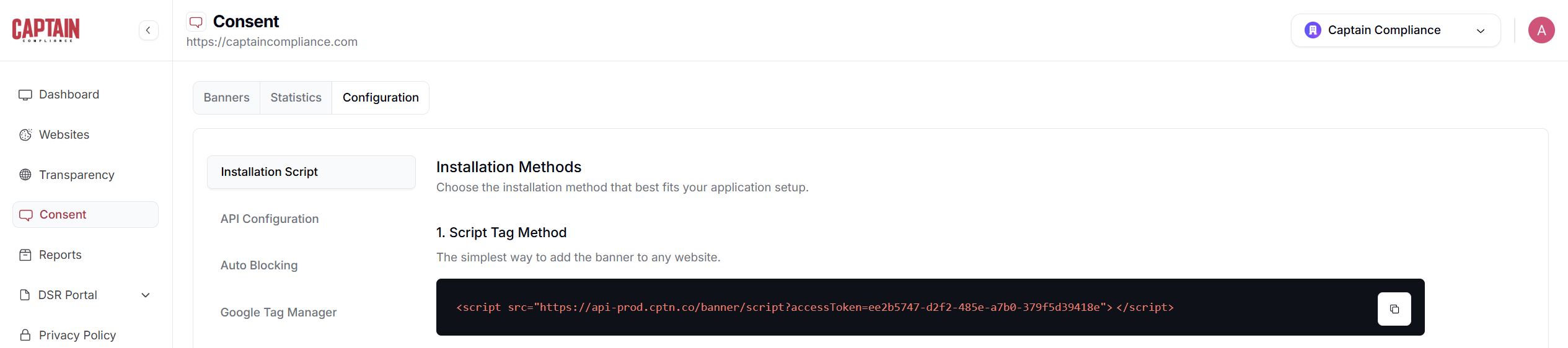
Always confirm that the script you are installing matches the exact domain where it will be deployed.
Installation Options
Captain Compliance can be installed either directly on the website or through Google Tag Manager (GTM). Both approaches are supported, and the correct choice depends on how your site is managed and how much control you require over script execution.
Option 1: Direct Install
With a direct install, the Captain Compliance script is added directly to your site’s HTML.
Typical placement options include:
The global
<head>sectionA site-wide header or layout template
A CMS theme or template file
Pros of Direct Install
Simple and fast to deploy
Fewer dependencies
Ideal for sites without complex tag management needs
Cons of Direct Install
Less flexibility for advanced script orchestration
Changes require code or CMS access
No built-in preview or debug mode
Deferred Mode (Direct Install)
When using a direct install, Captain Compliance supports a deferred mode option that delays execution of the script until after the initial page load. This can help reduce performance impact and avoid timing conflicts with other scripts that load early on the page.
Deferred mode does not change consent behavior. The consent banner will still appear, and consent logic will still apply. The difference is when the script is executed during the page lifecycle.
Deferred mode is most commonly used when:
The site is performance-sensitive
Other scripts depend on the page being fully loaded
You are troubleshooting script interaction or timing issues
To enable deferred mode for a direct install, add the defer attribute to the Captain Compliance script tag:
<script defer src="https://api-prod.cptn.co/banner/script?accessToken=YOUR_TOKEN"></script>Option 2: Install Using Google Tag Manager (GTM)
Installing Captain Compliance via Google Tag Manager provides additional control and visibility, especially on sites with many third-party tags.
How to Install via GTM:
Create a new Custom HTML tag in GTM
Paste the Captain Compliance script into the tag
Configure the tag to fire on Consent Initialization
Firing on Consent Initialization ensures the Captain Compliance script loads before other tags and can properly govern consent-based execution.
Pros of GTM Install
Greater control over script sequencing
Ability to test changes using GTM Preview mode
Easier coordination with analytics, marketing, and third-party tags
Centralized management for complex implementations
Cons of GTM Install
Requires GTM access and familiarity
Additional configuration complexity
Incorrect trigger selection can cause timing issues
Advanced GTM Capabilities
When deployed through GTM, Captain Compliance can support more advanced workflows, including tag-level gating, conditional firing, and integration with complex analytics setups.
These advanced GTM-specific configurations will be covered in a separate help article.
Installation Verification & Testing
After publishing Captain Compliance:
Load the site in a private or incognito browser session
Confirm the consent banner appears as expected
Interact with Accept, Reject, and Preferences
Verify consent behavior using browser developer tools if needed
Notes and Best Practices
Only one Captain Compliance script should be active per domain
Do not install the script both directly and via GTM
Always publish GTM changes after testing
Ensure caching layers are cleared after installation