How to Publish Your DSR Portal with a Link or an Embed Script
Once your data subject request (DSR) portal is set up and tested, you publish it so that people can reach it. There are two ways: link to the portal that Captain Compliance hosts, or embed the portal in a page of your own website. This article explains both, where to place the link, and how to confirm that the published portal works. To create and configure the portal first, see How to Generate and Customize a Data Subject Request (DSR) Portal.
Choose a method
Method | How it works | Choose it when |
|---|---|---|
Hosted link | Visitors follow a link to the portal on a page hosted by Captain Compliance. | You want the fastest setup with no change to your website beyond adding a link. Most organizations use this method. |
Embed script | The portal loads inside a page of your website. | You want visitors to stay on your website, and you can edit the page’s HTML. |
Before you publish
Finish the portal’s details, fields, and appearance, and submit a test request. See How to Generate and Customize a Data Subject Request (DSR) Portal.
Confirm where new-request emails go. In an organization account, select Organization in the sidebar, open Notification, and check Destination Mail. See How to Manage Organization Members, Roles, and Notifications.
Decide who handles requests. If you use teams and workflows, link a routing workflow to the portal. See How to Process and Route Data Subject Requests.
Complete your internal and legal review.
Publish with the hosted link
Select DSR Portal → Forms in the sidebar of the Captain Compliance app.
Open your portal.
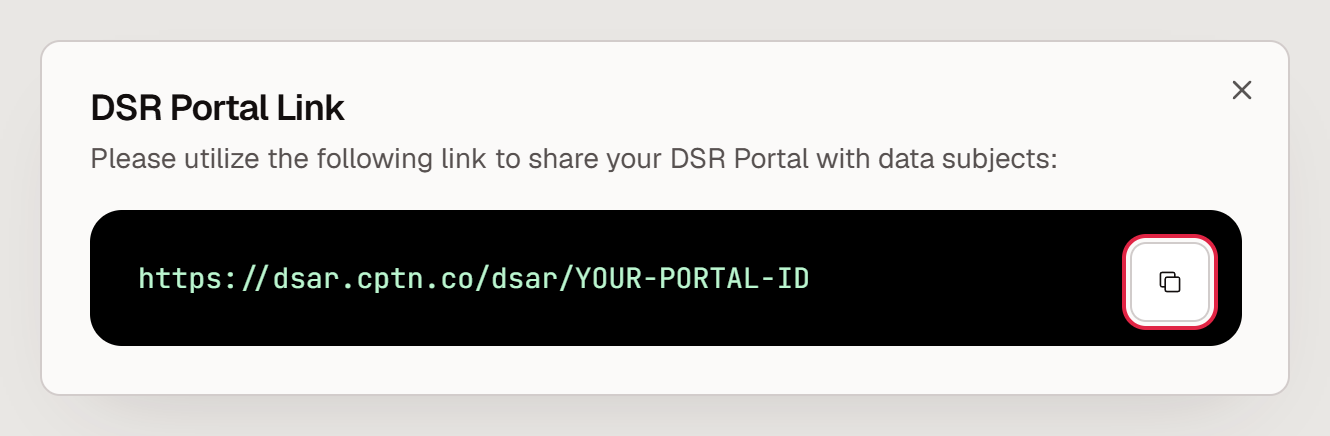
Select DSR Portal Link and copy the URL. It begins with
https://dsar.cptn.co/dsar/and ends with your portal’s access token.
Add the link to your website.
Publish with the embed script
Select DSR Portal → Forms in the sidebar and open your portal.
Select DSR Portal Script and copy both parts of the snippet.
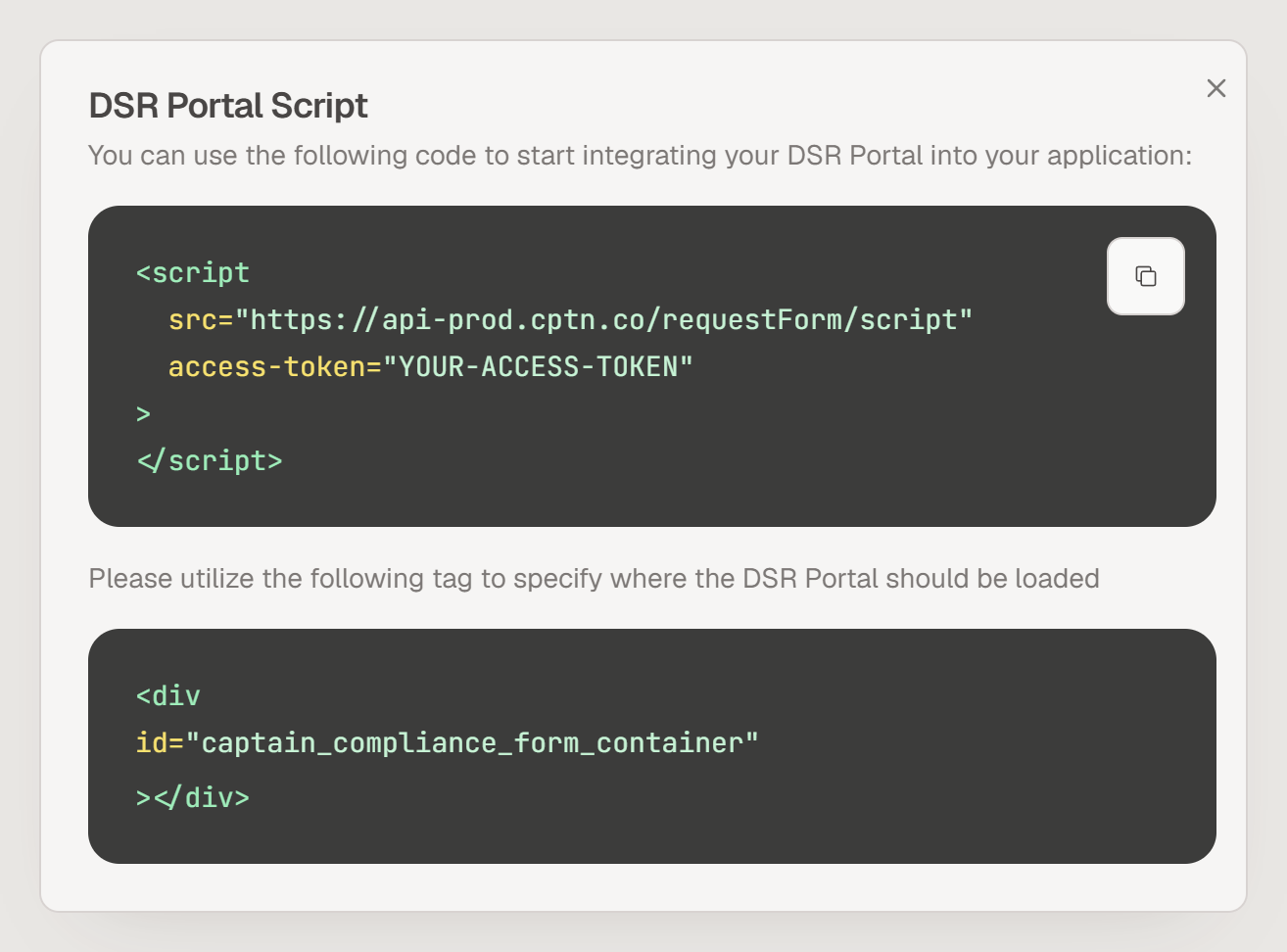
On the page where the portal should appear, paste the container element at the position where the form should load.
Paste the script tag on the same page.
Publish the page and open it to confirm that the portal loads.
<script
  src="https://api-prod.cptn.co/requestForm/script"
  access-token="YOUR_ACCESS_TOKEN">
</script>
<div id="captain_compliance_form_container"></div>
Copy the snippet from the app instead of typing it, because it contains your portal’s access token. Keep the container’s id exactly as provided: the script looks for that element to know where to load the portal.
If your site sends a Content Security Policy header, allow the script’s origin. See How to Configure a Content Security Policy (CSP) for Captain Compliance.
Where to link to the portal
People should be able to find the portal without searching for it. Whichever method you use, link to it from these places:
Your privacy notice, in the section that explains privacy rights and how to exercise them.
Your website footer, with a clear label such as Privacy Requests or Your Privacy Choices.
Any other place where you tell people how to make a request, such as account settings or help pages.
Ask counsel which labels and placements your organization needs, because some laws set specific requirements for opt-out links.
Confirm that the published portal works
Open the portal the way a visitor would, from the link or the embedded page on your live website.
Submit a test request.
In the Captain Compliance app, go to DSR Portal → Requests and confirm that the request appears.
Confirm that the notification email arrived at your destination address.
Open the test request and set its status to Not Applicable, so that it doesn’t count as an open request.
Repeat this test after any change to your website’s template, tag manager, or Content Security Policy, since each can stop an embedded portal from loading.
If the embedded portal doesn’t appear
Check that both parts of the snippet are on the page: the script tag and the container element.
Check that the container’s
idis unchanged and appears only once on the page.Open the browser’s developer console and look for blocked requests to
api-prod.cptn.co. A Content Security Policy or a script blocker can prevent the script from loading.Open the hosted link. If the hosted portal works, the problem is in the page that embeds it.