
How to Block Scripts Before Consent with Auto Blocking and Strict Mode
The consent banner records each visitor’s choice. For that choice to take effect, non-essential scripts must also be kept from running until it allows them. Captain Compliance provides two features for this on a domain’s Consent banner page: Auto blocking, where you list scripts and assign each one a category, and Strict mode, which intercepts scripts before they execute.
Both work alongside tag-level controls. If your tags run through Google Tag Manager, also see How to Gate GTM Tags with Native Consent Settings. For scripts that you load in your own code, see How to Gate Non-Essential Scripts and Beacons Using Explicit Consent Logic.
Add scripts to Auto blocking
Select Consent banner in the sidebar, and then select your domain.
Under Setup, select Auto blocking.
Add an entry for each item that should be held until the visitor allows its category, and choose that category:
Script Tags: the URL of the script
Iframe Tags: the name of the iframe
Inline Scripts: a pattern that identifies the inline script
Select Save Changes.
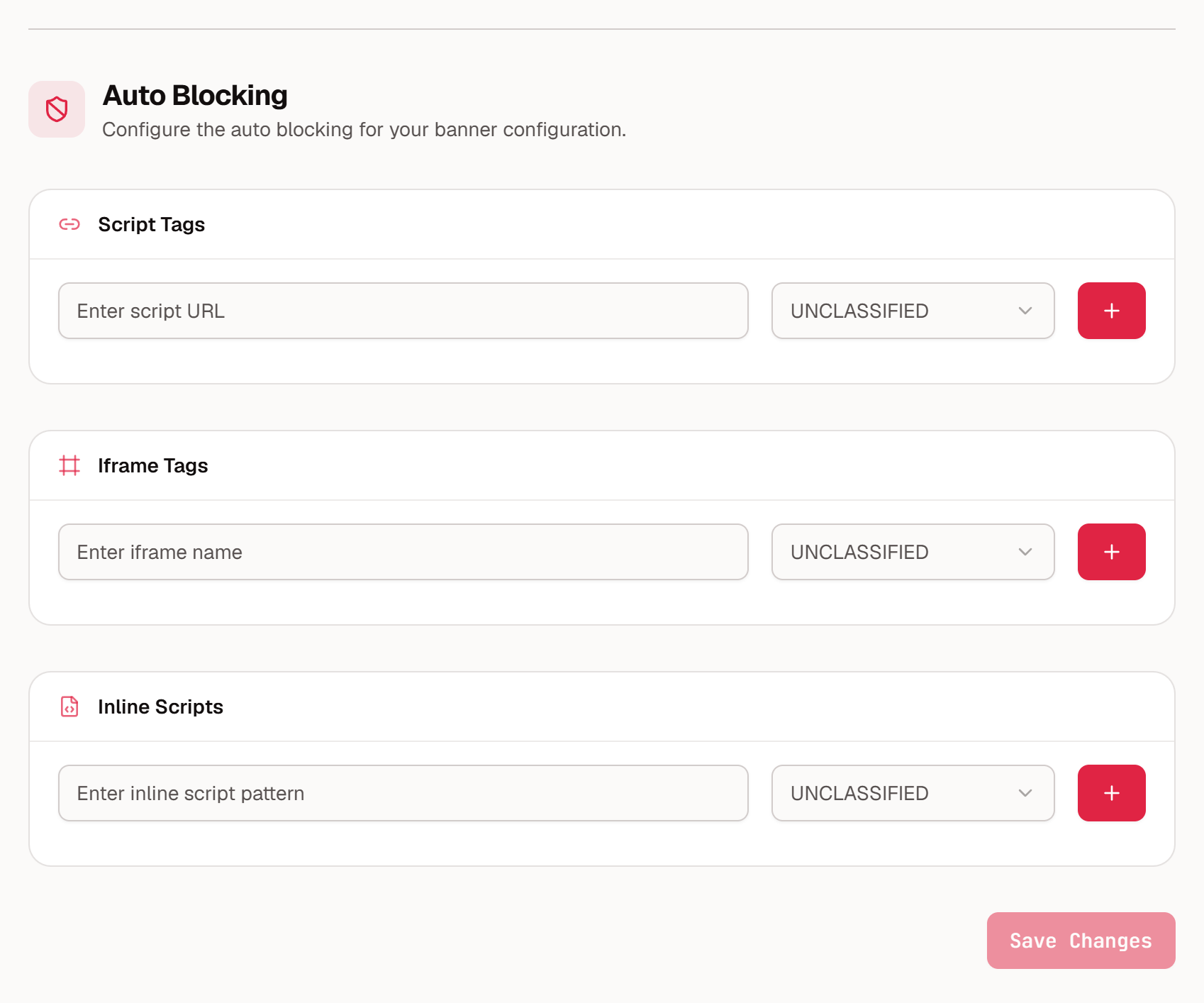
Choose the category that matches what the item does: Strictly Necessary, Functionality, Performance, or Targeting. Do not leave an entry Unclassified.
How Strict mode works
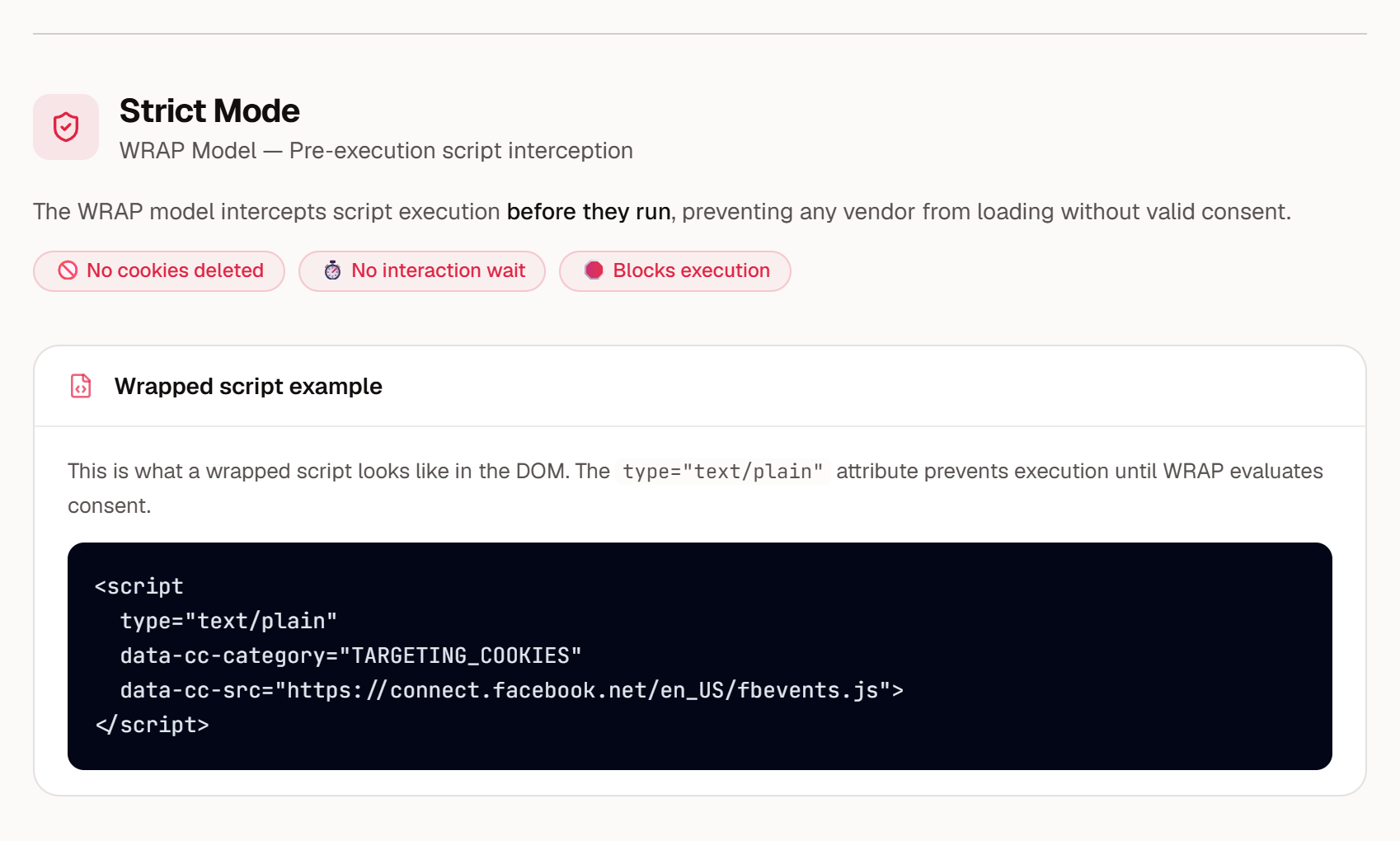
Strict mode uses what the app calls the WRAP model. Scripts are intercepted before they run, so that no vendor loads without valid consent. WRAP does not wait for the visitor to interact, and it does not depend on deleting cookies afterwards.
When Strict mode is active, WRAP intercepts:
Script elements in the page
Scripts created with
document.createElement('script')Scripts inserted with
appendChildorinsertBefore
For each intercepted script, WRAP identifies its URL, assigns a category, checks the consent state of that category, and then acts.
Consent state of the category | What happens to the script |
|---|---|
Allowed | It runs normally. |
Blocked | It does not run. It creates no cookies and makes no requests. |
Undecided | It is held until the visitor decides. |
Held scripts are kept in a queue. When the visitor accepts, turns a category on, or selects Allow Selection, WRAP re-evaluates the queue and runs the permitted scripts in their original order.
What a held script looks like
If you inspect the page, a script held by WRAP looks like the example below. The text/plain type keeps the browser from executing it until consent has been evaluated.
<script
  type="text/plain"
  data-cc-category="TARGETING_COOKIES"
  data-cc-src="https://connect.facebook.net/en_US/fbevents.js">
</script>
The category values are:
Value | Category |
|---|---|
| Strictly Necessary: essential site functionality |
| Functionality: preferences and user-experience features |
| Performance: analytics and performance metrics |
| Targeting: advertising, remarketing, and tracking |
| Unclassified: not yet categorized |
Strict mode and GPC
When a visitor’s browser sends a Global Privacy Control (GPC) signal, WRAP blocks the scripts in the categories that the signal turns off, without any interaction from the visitor. Advertising scripts such as Google Ads and Meta Pixel are typical examples.
Check whether Strict mode is active
The Strict mode section under Setup describes the model. If you are not sure whether it is active for your domain, contact your Captain Compliance representative.
Verify blocking
Open your site in a private browser window with the developer tools Network panel open.
Reject the non-essential categories, and confirm that the scripts you listed make no requests.
Allow the categories, and confirm that the scripts then run.
For the full test plan, see How to Test Consent Banner Configuration & Behavior. For background on why scripts must be held before consent, see How to Avoid Network-Traffic-Based Privacy Litigation.