
How to Publish a Cookie Transparency Page
A cookie transparency page is a hosted, public page that lists the cookies your website uses, grouped by category. Captain Compliance builds it from your scan results and the cookies you have approved. The default consent banner links to it from its footer.
This article explains what the page shows, how to publish it, and how to keep it current.
What the page shows
Your domain and the date the list was last updated
Cookie Graphs: charts of the number of cookies in each category
First Party and Third Party sections, each grouped by category
For every cookie, the page lists the Name, Value, Domain, Cookie type, Expiration, Description, and any Note.
Only cookies on your Published list are disclosed. To approve, edit, or remove cookies, see How to Review and Classify Cookies After a Scan.
Set up and publish the page
Select Transparency in the sidebar.
Select your domain. The editor opens with a preview of the page.
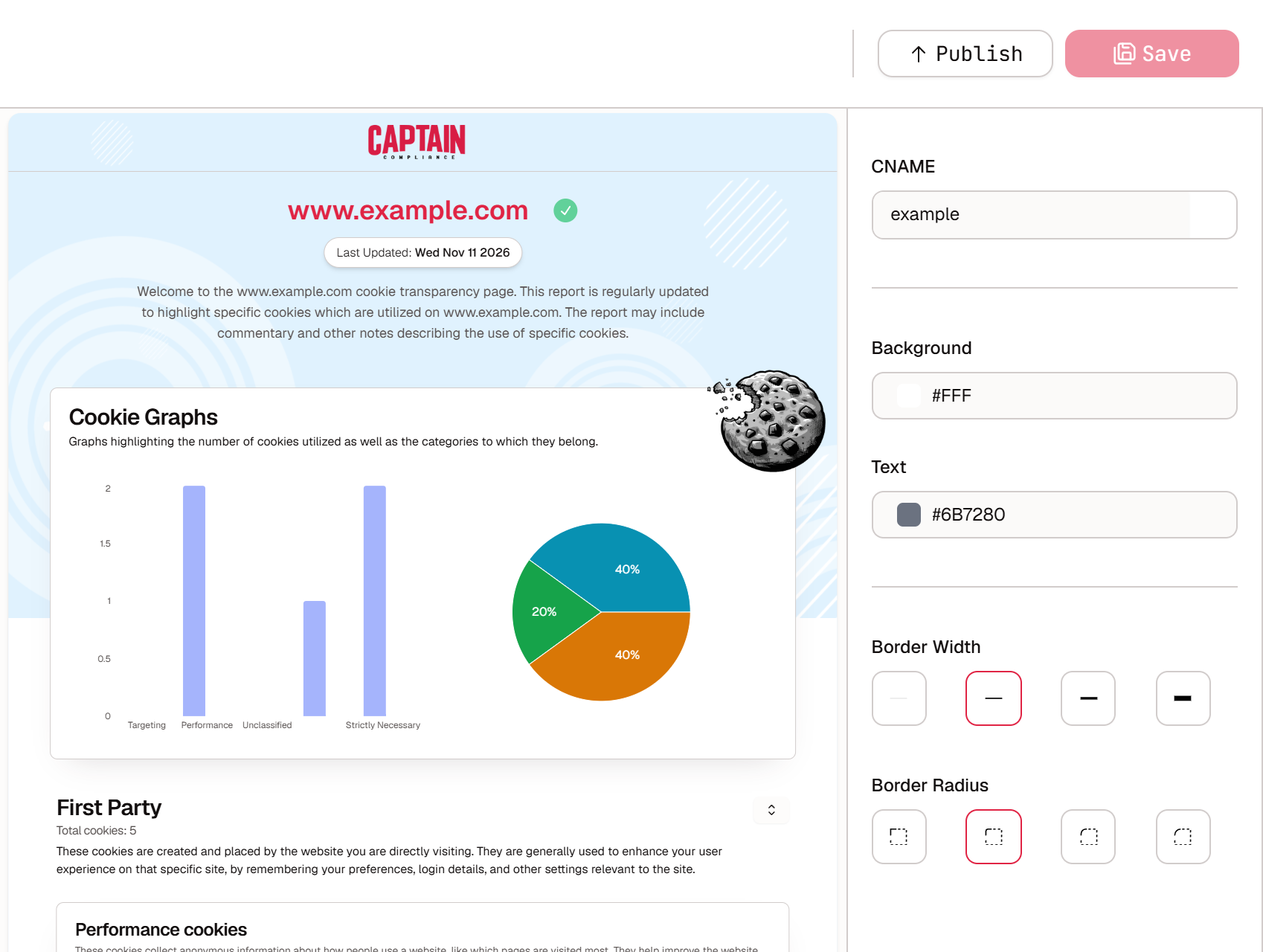
In CNAME, enter the name to use in the page’s address.
Set the Background and Text colors, the Border Width, and the Border Radius. The preview updates as you make changes.
Select Save.
Select Publish.
The page is served at https://your-cname.cookietransparency.com, where your-cname is the value you entered.
Link to the page
The consent banner’s footer includes a Transparency page link. You can change the link text in the banner editor: see How to Customize Your Consent Banner in the Banner Editor.
Add a link to the page from your website footer, your cookie policy, or your privacy notice, so that visitors can find it at any time.
Keep the page current
The page reflects your Published cookie list, so it changes when that list changes.
Re-scan your site after you add or remove tools.
Review the new and dropped cookies that the scan finds. Cookies waiting for review stay off the page until you approve them.
Check that each description is accurate and meaningful to a visitor.