
How to Fire Early-Loading Tags After Consent with CC - Consent Ready
GTM checks a tag’s consent requirement once, at the moment its trigger fires, and doesn’t check again. Tags that fire at the start of a page therefore run before the banner has delivered the visitor’s state. The CC - Consent Ready trigger fixes that by firing those tags once the state is known. This article explains which tags need it and how to set it up.
The problem
When a page loads, the Captain Compliance CMP tag sets the consent default at Consent Initialization, then the banner resolves the visitor’s effective state: the regional default, any stored preference, and Global Privacy Control. That takes a moment. Meanwhile GTM keeps firing triggers: Initialization, page view, DOM Ready, and any site events pushed during load.
A tag with an additional consent requirement on one of those triggers is evaluated against whatever state exists at that instant:
In an opt-in region, consent is denied, so the tag is blocked. If the visitor then clicks Allow, the tag doesn’t fire; it’s not retried until the next page.
In an opt-out region, the first page view can start with a denied default while the visitor’s regional default loads, so the tag can be blocked on the visit where it mattered most.
Google tags don’t have this problem. Their built-in consent checks wait for the update and adjust on their own. It’s a problem only for tags gated with Require additional consent.
The solution
The banner pushes a data layer event, captainComplianceConsentReady, once it has resolved the visitor’s state for the page. A Custom Event trigger listening for it fires at exactly the right moment: if consent is granted (by default, by stored choice, or by a fresh click) the tag runs; if it’s denied, the tag’s consent setting blocks it, as it should. Moving early-firing tags onto this trigger is the whole change.
Which tags to move
A tag needs CC - Consent Ready when both are true:
Its consent setting is Require additional consent.
It fires on an early trigger: Consent Initialization, Initialization, All Pages or any Page View trigger, DOM Ready, Window Loaded, or a site event that’s pushed during page load.
Leave these alone:
Google tags and anything set to No additional consent required. They’d fire later for no benefit.
Tags on later events, such as purchases, form submissions and clicks. Consent is long settled by then.
The Captain Compliance CMP tag itself, which must stay on Consent Initialization.
Paused tags count. Move them too, so they’re correct when someone unpauses them.
Step 1: Create the trigger
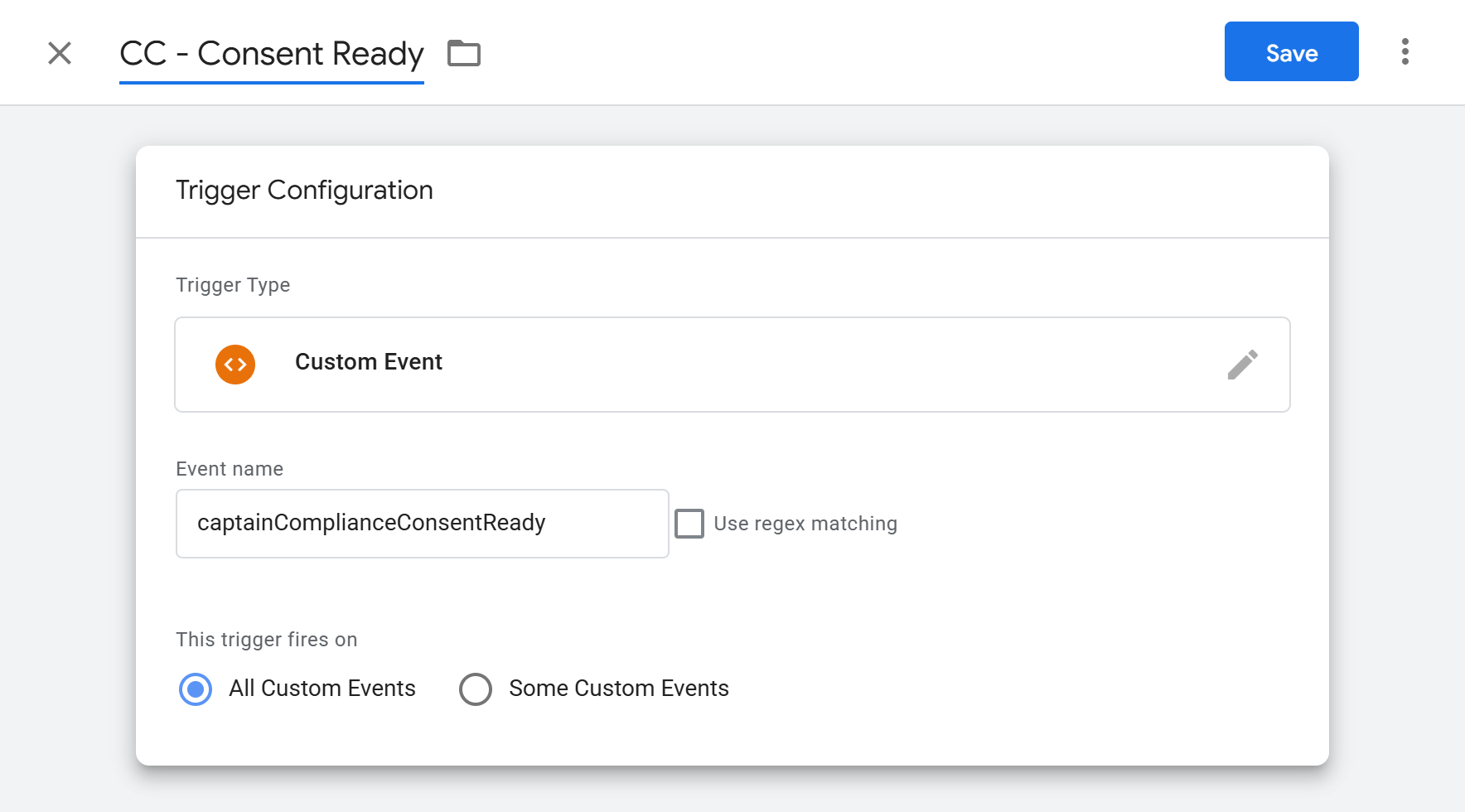
Go to Triggers and click New.
Choose Custom Event.
Event name:
captainComplianceConsentReadyThis trigger fires on: All Custom Events.
Name it
CC - Consent Readyand save.
Step 2: Find the tags
Open the Tags page with Consent Overview on (the shield icon) and go through the tags in the Consent Configured group that have Require additional consent. For each, check its firing triggers against the list above. Writing the list down before you start makes the next steps quicker and gives you something to test against.
Step 3: Swap the trigger
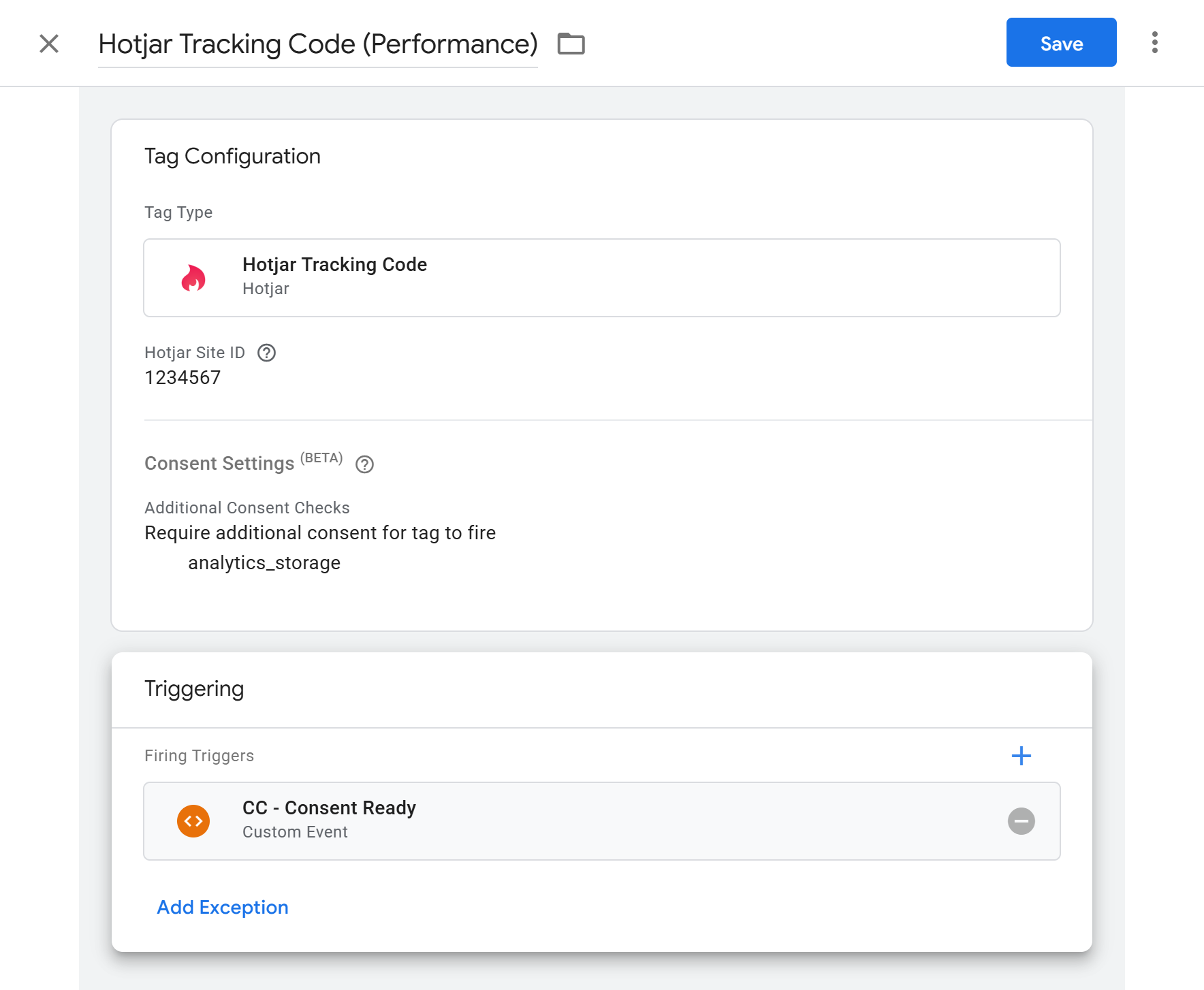
For tags whose early trigger has no conditions (All Pages, Initialization - All Pages, a plain DOM Ready):
Open the tag.
Remove the early trigger from Firing Triggers.
Add
CC - Consent Ready.Leave any other triggers on the tag in place, and save.
Step 4: Triggers with conditions
Many early triggers carry a condition, such as Page Hostname contains www.example.com for a production environment, or Page URL contains /checkout for a specific page. Swapping those for the plain CC - Consent Ready trigger would drop the condition, so make a copy instead:
Create a new Custom Event trigger on
captainComplianceConsentReady.Set This trigger fires on to Some Custom Events and add the same conditions as the original trigger.
Name it
CC - Consent Ready -followed by the original trigger’s name, for exampleCC - Consent Ready - All Pages - Production.On each tag that used the original trigger, replace it with the copy.
One copy per original trigger is enough, however many tags use it. The originals can stay in the container unused or be deleted once nothing references them.
A note on conditions that read the page: a condition on a DOM element or a data layer value is evaluated when the consent event fires rather than at page view. Data layer values pushed during load are still there; a DOM element is only there if it has rendered by then. Check those cases in Preview.
Step 5: Tags fired by an early site event
Some tags fire on an event the site pushes during load that carries data the tag needs, for example a server-side conversions relay reading a payload from the data layer. For those, use a trigger group so the tag fires once both the site event and the consent event have happened, in either order:
Go to Triggers, click New, and choose Trigger Group.
Add the site event trigger and
CC - Consent Ready.Name it
CC - Consent Ready +followed by the event name, and save.On the tag, replace the site event trigger with the group. Don’t keep both, or consented visitors get the event twice.
The tag’s data layer variables (version 2) still hold the payload when the group fires. The limitation is that a trigger group fires once per page, so this works when the site pushes the event once per page load. If it’s pushed several times per page, the site needs to push it after consent instead.
Step 6: Verify
In Preview, with Tag Assistant:
Load a page from an opt-in region with no stored choice. The moved tags should not fire. In the event list,
captainComplianceConsentReadyappears after the Consent Update.Click Allow and reload. The tags fire on the
captainComplianceConsentReadyevent.Load a page from an opt-out region. The tags fire on
captainComplianceConsentReady, not on page view.Enable GPC and reload. The tags don’t fire.
If a moved tag fires on the wrong event or not at all, click it in Tag Assistant to see which trigger fired and the consent state at that moment.
For the full set of scenarios to run before publishing, see How to Test Your GTM Consent Setup.
What changes for the visitor
Moved tags now run a little later in the page load than before, after the banner has resolved the state rather than at the first page view. For a tracking pixel or a chat widget that’s a fraction of a second and invisible to the visitor. If a tag genuinely must run at page view regardless of consent, it shouldn’t have a consent requirement in the first place; review whether it belongs in the strictly necessary category.
CC - Consent Ready fires once the state is resolved on each page. To fire a tag the moment a visitor clicks Allow, without waiting for the next page, see How to Gate GTM Tags with Captain Compliance Consent Events (Advanced).
Related pitfalls
Catch-all triggers. A Custom Event trigger whose event name matches
.+fires on Consent Initialization as well, before stored choices and GPC are applied. Change the pattern to^(?!gtm\.init_consent$|gtm\.init$).+or give the tag specific triggers.Google tags on Consent Initialization. Move them to Initialization or later so their built-in checks see the defaults.
Tags still at Not set. CC - Consent Ready changes when a tag fires; the consent setting decides whether. Both are needed.