
How to Change How Long a Visitor’s Consent Choice Lasts
Captain Compliance stores each visitor’s choice in a cookie that expires after a set number of days. When the cookie expires, the banner asks again. The default is 30 days. This article explains how to change the period and what to weigh when you choose one.
How the expiration works
The Expiration Time (days) setting is the lifetime of the consent cookie. The same period applies to every choice: Allow, Reject, or a custom selection.
When the cookie expires or is deleted, the visitor is treated as new. The banner appears again, and the default for the visitor’s region applies until they choose.
In a region that you set up as opt-out, that default allows tracking. A visitor who opted out is tracked again until they repeat the choice.
The choice lives in one browser. Another browser, another device, or a private window starts fresh.
Change the period for the whole domain
In the Captain Compliance app, select Consent banner in the sidebar, and select the domain.
Under Setup, select Open Global Playground.
Select the Configuration tab.
Enter the number of days in Expiration Time (days).
Select Save.
Change the period for one configuration
A configuration can have its own period. Use this to give different regions different periods.
In the Captain Compliance app, select Consent banner in the sidebar, and select the domain.
Under Banners, select the configuration. The Consent banner editor opens.
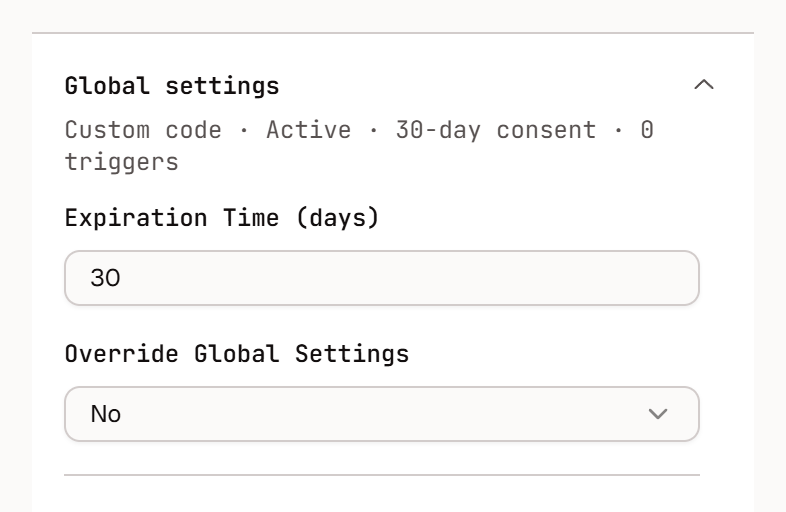
Open Global settings.
Set Override Global Settings to Yes.
Enter the number of days in Expiration Time (days).
Select Save, and then select Publish.
The Global settings panel in the banner editor:
What to weigh when you choose a period
Consideration | What it means for the period |
|---|---|
California opt-outs | A business must wait at least 12 months before it asks a consumer who opted out of sale or sharing to opt back in. A banner that reappears sooner, because the cookie expired, can amount to asking again. |
Opt-in regions | Regulators in the United Kingdom and France suggest waiting about six months before asking again, especially after a refusal. |
Very short periods | An opt-out that lasts only days can be treated as deceptive. U.S. regulators have challenged an opt-out that expired after 10 days. |
Browser limits | Safari and Brave remove cookies that a script sets after seven days without a visit that includes a click, tap, or key press. Chrome caps every cookie at 400 days. The consent cookie is set by a script, so in these browsers a choice can end sooner than your setting. |
The opt-out model carries the larger risk. If a choice is lost under opt-in, the banner only asks again. If a choice is lost under opt-out, tracking restarts without a new choice.
When to consider a longer period
The default of 30 days suits many sites, and you do not have to change it. Some jurisdictions require or recommend longer periods, such as 6 to 12 months, before a visitor is asked again. If your visitors are in those jurisdictions, consider a longer period for the configurations that serve them.
Opt-out configurations, such as those for U.S. states: a period of up to 12 months keeps your own setting from ending an opt-out early.
Opt-in configurations, such as those for the European Union and the United Kingdom: a period of about 6 months matches the interval that some regulators suggest.
Do not set more than 400 days. Chrome ignores the rest.
Keep Global Privacy Control honored. The signal arrives with every visit, so it does not depend on the cookie. See How to Use Bucket Mode to Customize Consent Categories and GPC Behavior.
This article describes product behavior and common considerations. It is not legal advice. Confirm your approach with your own counsel.
Check the result
Open your site in a private or incognito browser window, and make a choice in the banner.
Open the browser’s developer tools, and find the cookies for your site. In Chrome, they are under Application → Cookies.
Look at the Expires value of the cookies whose names start with
cc_. It should be the number of days that you set from today.Repeat the check in Safari if many of your visitors use it.