
How to Install the Captain Compliance Consent Banner on WordPress
This article explains how to add the Captain Compliance consent banner to a WordPress site. Captain Compliance is installed by adding its script to the site. You can place the script in your theme, or load it through Google Tag Manager (GTM). Captain Compliance does not need a plugin of its own.
Before you start
Add the site’s domain in Captain Compliance and set up its consent banner. See How to Set Up Captain Compliance: A Step-by-Step Checklist.
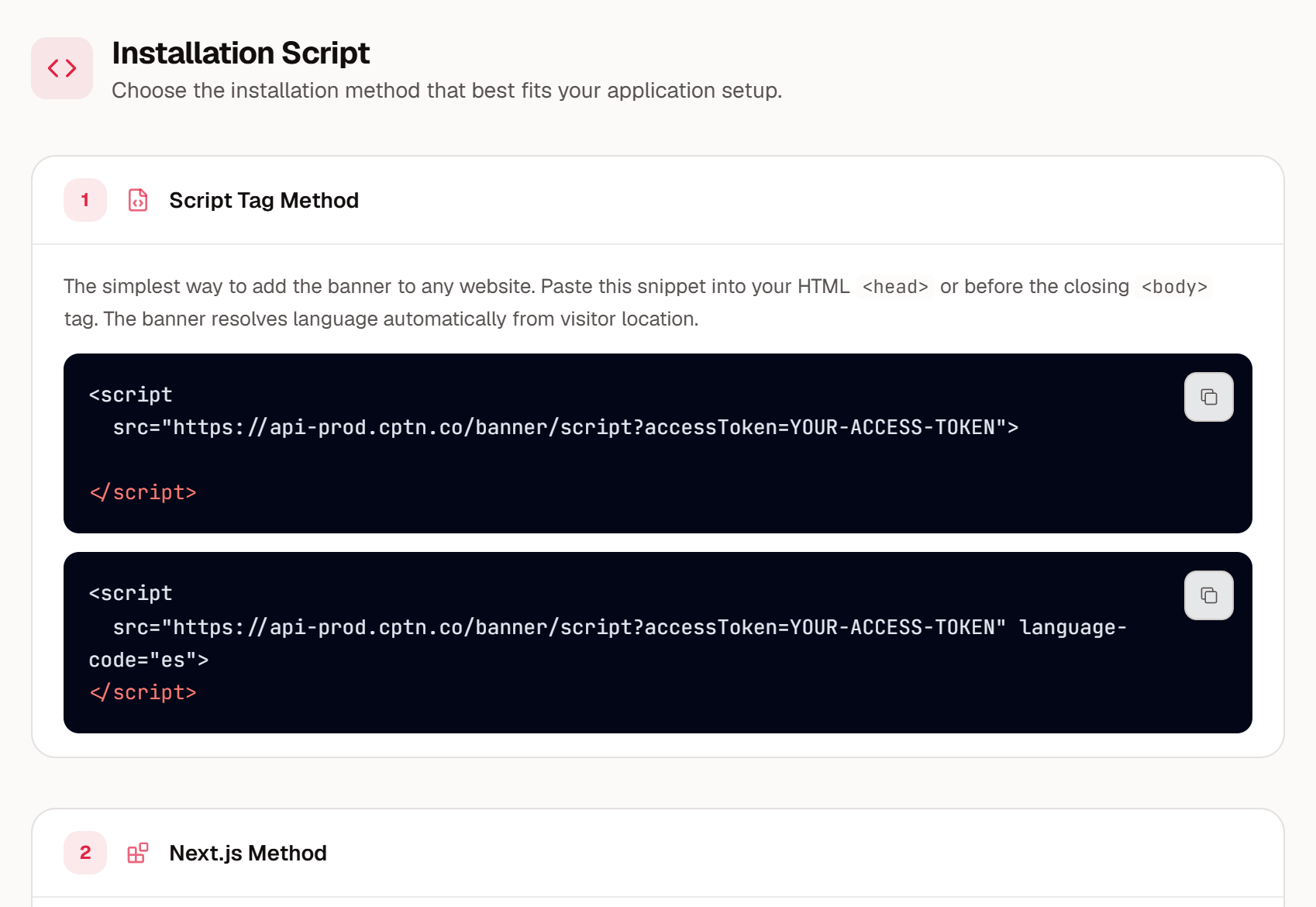
Copy the script for that domain. In the Captain Compliance app, select Consent banner in the sidebar, select the domain, and under Setup select Installation script. Copy the snippet under Script Tag Method.
Make sure you can edit theme files, either in the WordPress admin or through your host’s file manager or SFTP.
Deactivate any other cookie banner plugin. Captain Compliance should be the only consent banner on the site.
The script runs only on the domain it was issued for, with or without www. On a subdomain, the banner appears only if that subdomain has been added in Captain Compliance. On any other address, the banner does not appear. For example, a staging copy of the site on another address does not show the banner. To add a domain or subdomain, see How to Scan Websites and Manage Domains.
The Installation script section in the Captain Compliance app:
Option 1: Add the script to your theme
Add the script with the wp_head action, which prints code in the head of every front-end page. Put the code in a child theme. An update to the parent theme replaces its files, which would remove your change.
Open the child theme’s
functions.phpfile. In the WordPress admin, the Theme File Editor is under Appearance for classic themes and under Tools for block themes. If your host has turned the editor off, edit the file through the host’s file manager or SFTP.Add the code below at the end of the file. Replace
YOUR-ACCESS-TOKENwith the token from your own script.Save the file.
add_action( 'wp_head', function () {
    ?>
    <script src="https://api-prod.cptn.co/banner/script?accessToken=YOUR-ACCESS-TOKEN"></script>
    <?php
}, 1 );
The priority of 1 prints the script near the top of the head, ahead of most scripts that plugins add. This matters if you use Auto Blocking or Strict Mode, because the banner script can only hold scripts that load after it. See How to Block Scripts Before Consent with Auto Blocking and Strict Mode.
If your theme has its own setting for code in the site head, or you already use a plugin that adds code to the head, you can paste the script tag there instead. Use only one of these methods.
Install through Google Tag Manager instead
If the site already loads GTM, you can load the banner from GTM instead of the theme. Add the Captain Compliance CMP template to the container, enter the access token for the domain, and set the tag to fire on Consent Initialization - All Pages. See How to Install and Configure the Captain Compliance CMP Template in GTM.
Use one method only. If you install through GTM, do not also paste the script into the site.
Caching and optimization plugins
After you add the script, clear every cache layer: your caching plugin, any server cache from your host, and your CDN. Until you do, visitors can receive stored pages that do not include the script.
Plugins that delay, combine, or rewrite JavaScript can stop the banner from appearing or responding. If that happens, exclude
api-prod.cptn.cofrom those features. For WP Rocket, see How to Resolve WP Rocket Caching Issues With Captain Compliance.
Confirm the banner is live
Open the published site in a private or incognito browser window.
Confirm that the banner appears, and try Allow, Reject, and Cookie Settings.
View the page source and search for
api-prod.cptn.coto confirm that the script is in the head.
If the banner does not appear, see How to Troubleshoot a Consent Banner That Does Not Appear or Respond. For a full test plan, see How to Test Consent Banner Configuration & Behavior.
WordPress notes
The
wp_headaction runs on every page that the theme renders, including WooCommerce shop, cart, and checkout pages. It does not run in the WordPress admin.On a multisite network, each site that has its own domain needs the script for that domain.
If you switch themes, move the code to the new theme’s child theme.
For WordPress’s own documentation, see the wp_head hook reference.
Related articles
How to Install and Configure the Captain Compliance CMP Template in GTM
How to Resolve WP Rocket Caching Issues With Captain Compliance
How to Block Scripts Before Consent with Auto Blocking and Strict Mode
How to Configure a Content Security Policy (CSP) for Captain Compliance
How to Troubleshoot a Consent Banner That Does Not Appear or Respond