
How to Install the Captain Compliance Consent Banner on Squarespace
This article explains how to add the Captain Compliance consent banner to a Squarespace site by pasting the script into Code Injection, or by loading it through Google Tag Manager (GTM). No extension is required.
Before you start
Add the site’s domain in Captain Compliance and set up its consent banner. See How to Set Up Captain Compliance: A Step-by-Step Checklist.
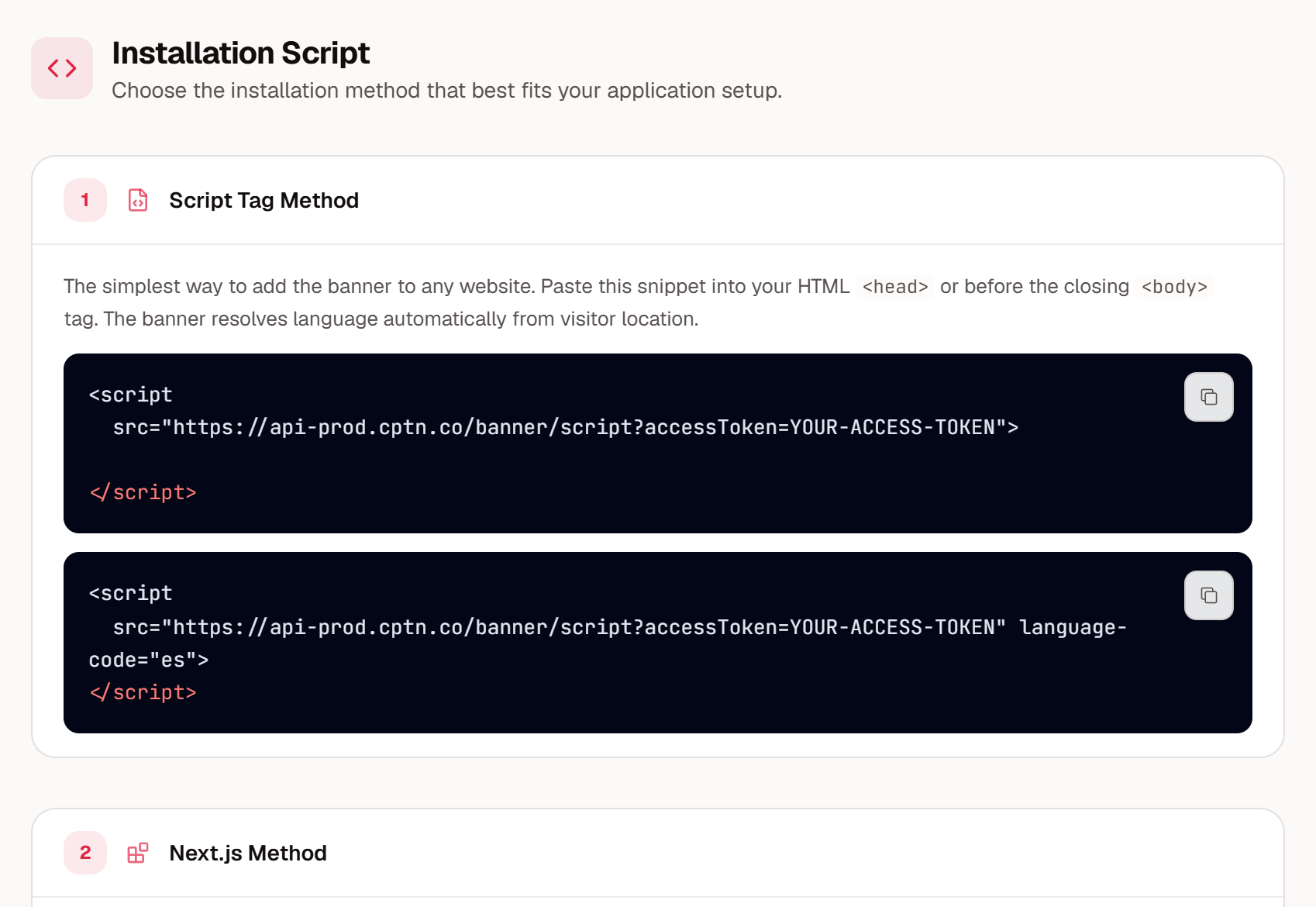
Copy the script for that domain. In the Captain Compliance app, select Consent banner in the sidebar, select the domain, and under Setup select Installation script. Copy the snippet under Script Tag Method.
Check that your plan includes Code Injection. Squarespace offers it on the Core, Plus, and Advanced plans and on some older plans.
Turn off Squarespace’s own cookie banner. Open the Cookies & Visitor Data panel, and switch Cookie Banner off. Captain Compliance should be the only consent banner on the site.
The script runs only on the domain it was issued for, with or without www. On a subdomain, the banner appears only if that subdomain has been added in Captain Compliance. On any other address, the banner does not appear. For example, if you added your custom domain in Captain Compliance, the banner does not appear on the site’s built-in squarespace.com address. To add a domain or subdomain, see How to Scan Websites and Manage Domains.
The Installation script section in the Captain Compliance app:
Add the script in Code Injection
Open the Code Injection panel. Squarespace has moved this panel between menus. Look for it under Website → Pages → Custom Code, or under Settings in the Advanced or Developer Tools group.
Paste the script into the Header field, above any other code.
Select Save.
<script src="https://api-prod.cptn.co/banner/script?accessToken=YOUR-ACCESS-TOKEN"></script>Squarespace adds the Header code to the head of every page on the site.
Squarespace notes
Keep Squarespace’s own cookie banner off. Two banners confuse visitors and can record different choices.
The Cookies & Visitor Data panel also controls the cookies of Squarespace’s own analytics. The Captain Compliance banner does not manage that setting, so review it against your privacy requirements.
Squarespace does not run injected code on checkout pages, so the banner does not appear there.
If injected code gets in the way while you edit the site, Squarespace offers a Disable Scripts in Preview option.
Squarespace support does not troubleshoot custom code. For help with the banner, contact your Captain Compliance representative.
Install through Google Tag Manager instead
If the GTM snippet is already in the Header field, you can load the banner from GTM instead of pasting the script. Add the Captain Compliance CMP template to the container, enter the access token for the domain, and set the tag to fire on Consent Initialization - All Pages. See How to Install and Configure the Captain Compliance CMP Template in GTM.
Use one method only. If you install through GTM, do not also paste the script into the site.
Confirm the banner is live
Open the published site in a private or incognito browser window.
Confirm that the banner appears, and try Allow, Reject, and Cookie Settings.
View the page source and search for
api-prod.cptn.coto confirm that the script is in the head.
If the banner does not appear, see How to Troubleshoot a Consent Banner That Does Not Appear or Respond. For a full test plan, see How to Test Consent Banner Configuration & Behavior.
For Squarespace’s own instructions, see Using code injection in the Squarespace Help Center.