
How to Disable Geolocation for Your Consent Banner
By default, Captain Compliance detects each visitor’s country and region from their IP address and serves the banner configuration that you set up for that location. You can turn this off, so that every visitor gets the same configuration. This article explains what geolocation does, when to turn it off, and how.
What geolocation does
When a page loads the banner, Captain Compliance looks up the visitor’s location from the IP address of the request.
It uses the location to choose between your regional configurations. See How to Create Regional Consent Banner Configurations.
The detected country and region are saved in a cookie in the visitor’s browser and with the visitor’s choice.
When to turn it off
You use one opt-in model for everyone. If every visitor gets the same, strictest experience, the location adds nothing.
Your visitors are mainly in opt-in regions, such as the European Union, and you prefer not to look up a location before the visitor has made a choice. Using an IP address to work out a location is itself a use of personal data, and some organizations choose to avoid it.
You want every visitor, scan, and test to see the same banner. A visitor who uses a VPN or proxy can otherwise be placed in the wrong region.
If you need different consent models in different regions, keep geolocation on. See How to Choose Between Opt-In and Opt-Out Consent Models.
What changes when geolocation is off
Every visitor gets the Global configuration. Regional configurations are not used.
Captain Compliance no longer passes a location to the banner, and no location is saved with the visitor’s choice.
Language is not affected. The banner still follows the browser’s language, or the
language-codeattribute if you set one.
Before you turn geolocation off, make sure that the Global configuration uses the model you want for everyone. For most sites that turn it off, that is opt-in.
Turn geolocation off
In the Captain Compliance app, select Consent banner in the sidebar, and select the domain.
Under Setup, select Geolocation.
Turn on Disable geolocation. The change is saved immediately.
The Geolocation section in the Captain Compliance app:
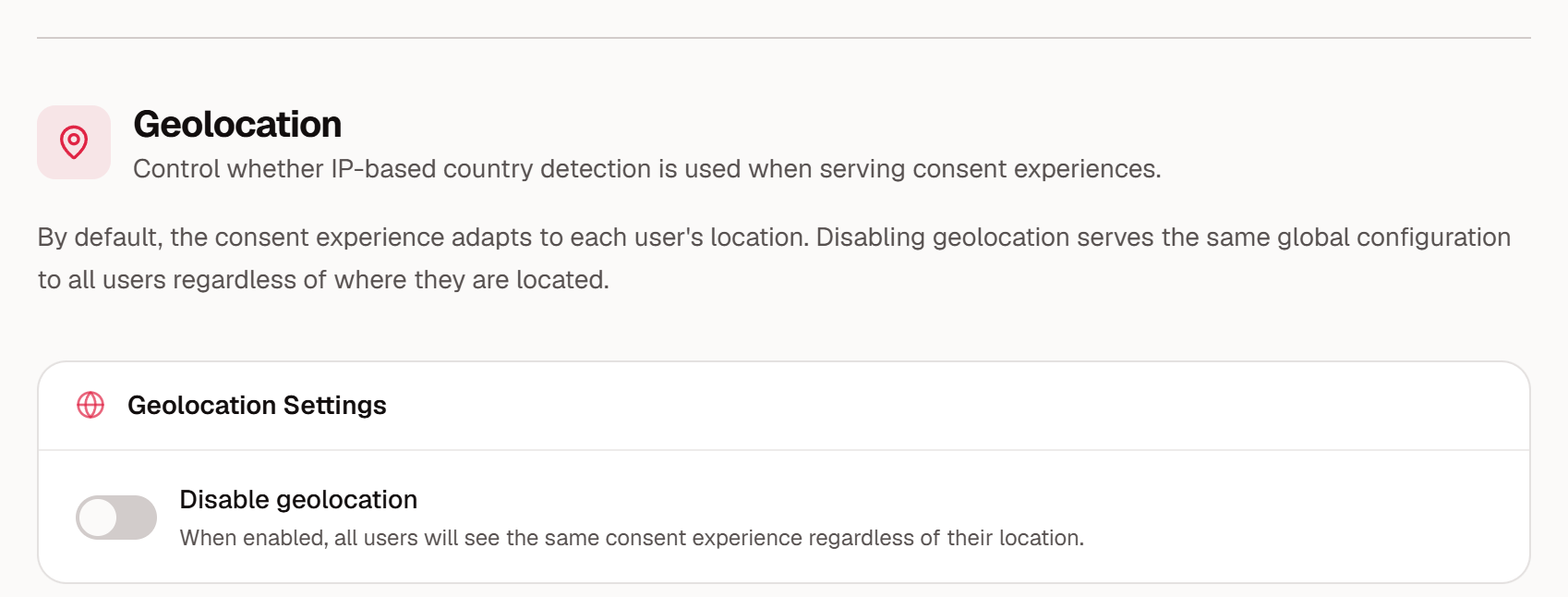
To turn geolocation back on, turn Disable geolocation off.
Check the result
Open your site in a private or incognito browser window.
Confirm that the banner from the Global configuration appears.
If you have regional configurations, repeat the check through a VPN in another region. The same banner should appear.
Things to consider
One model for everyone is simpler to explain and to defend, but an opt-in model in opt-out regions lowers the share of visitors who are measured.
Privacy notices have their own setting. In a privacy notice’s Configuration, the Geolocation section has the same Disable geolocation switch. See How to Create Regional Privacy Notices and Translations.
Global Privacy Control is still honored for every visitor.
This article describes product behavior and common considerations. It is not legal advice. Confirm your approach with your own counsel.